
Projects
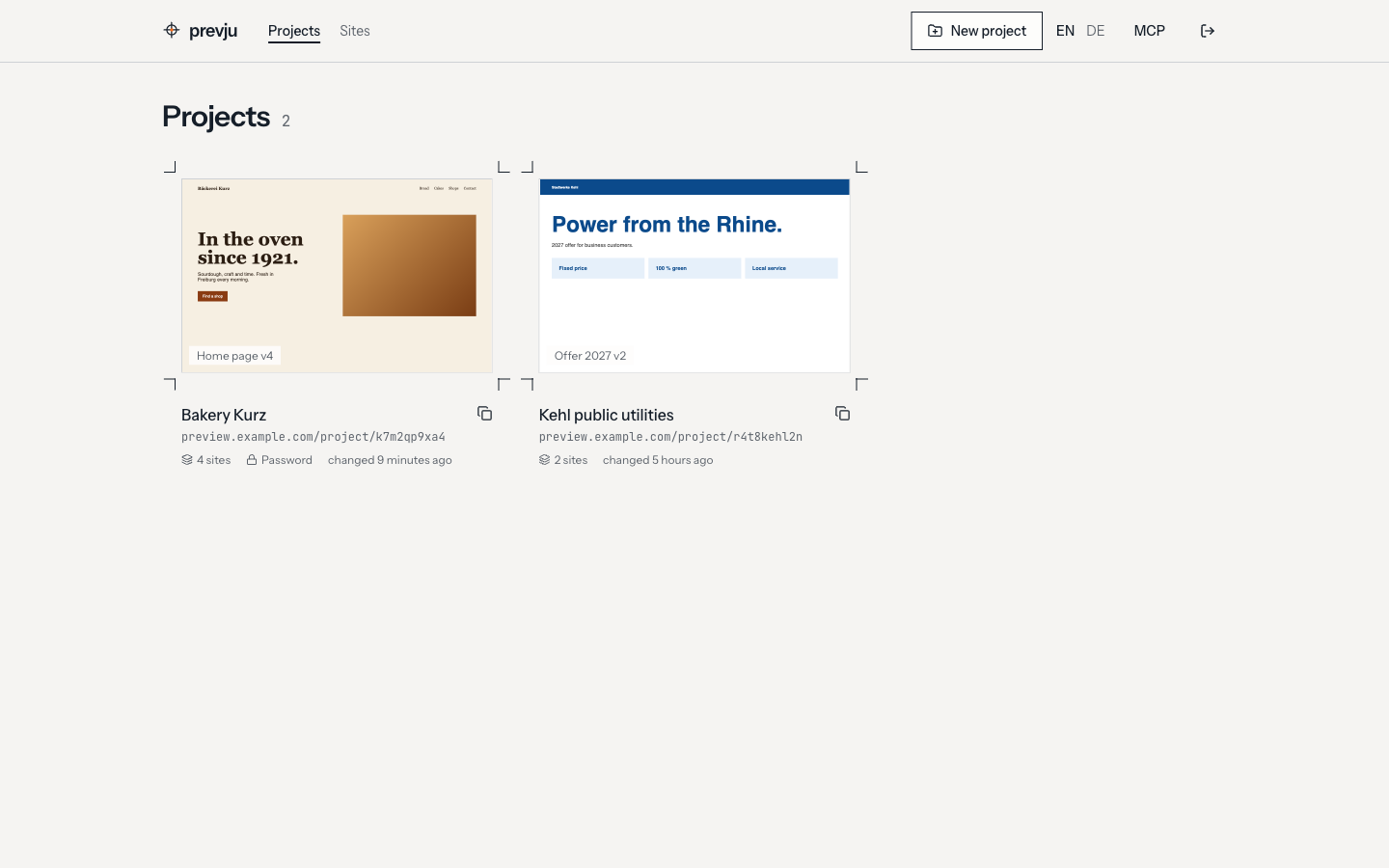
A project bundles several sites behind one link. Send your client the project link instead of a link per draft: they see all drafts of the project on one page, the most recently changed first. Handy when you iterate: v1, v2, … v10 stay side by side and the client can say "v3 was better".
Create a project
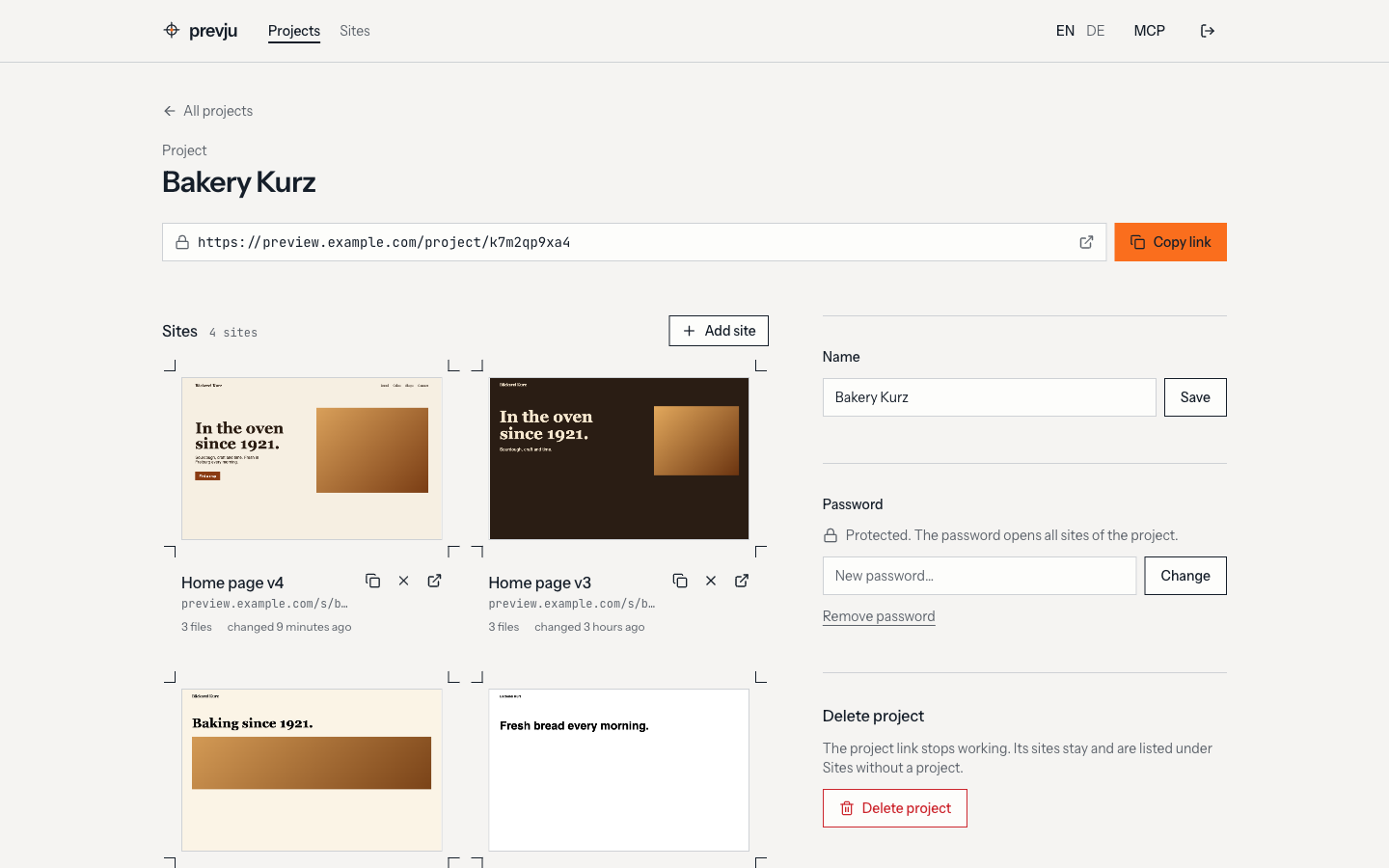
The admin opens on Projects. Click New project, then create sites right inside it with Add site on the project page. New site on the Sites page also lets you pick a project. Each project's card cycles through the previews of its sites.
Move sites into a project
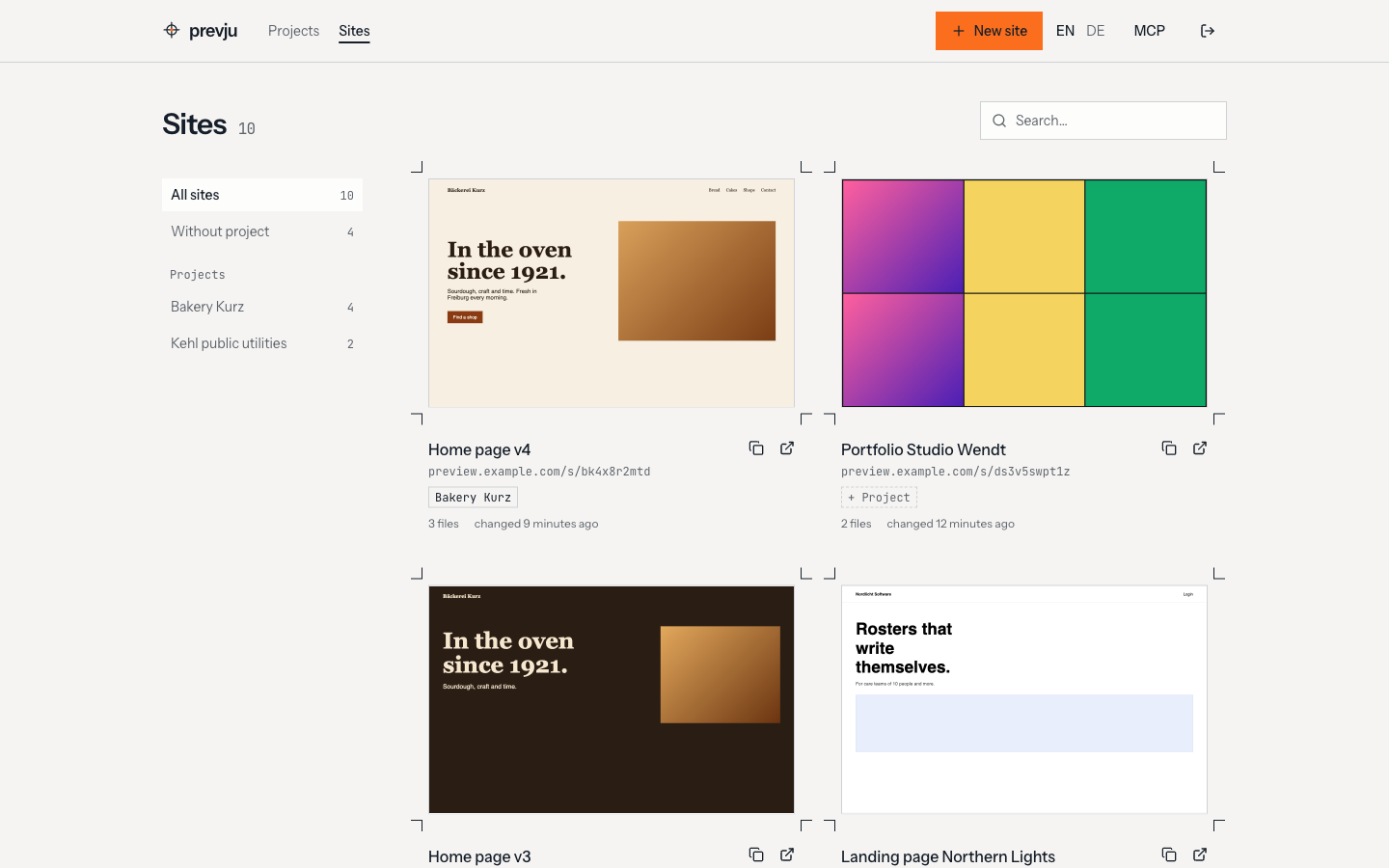
Sites lists every site, with your projects on the left. A site belongs to at most one project.
- Drag a site onto a project on the left. Drop it on Without project to take it out again.
- Or click the project label on a card (+ Project if it has none) and pick a project or No project. This works on phones and with the keyboard too.
- On a project's page, the × on a card takes the site out of the project.
Every move shows a message with Undo. Click a project on the left to see only its sites.
The client's page
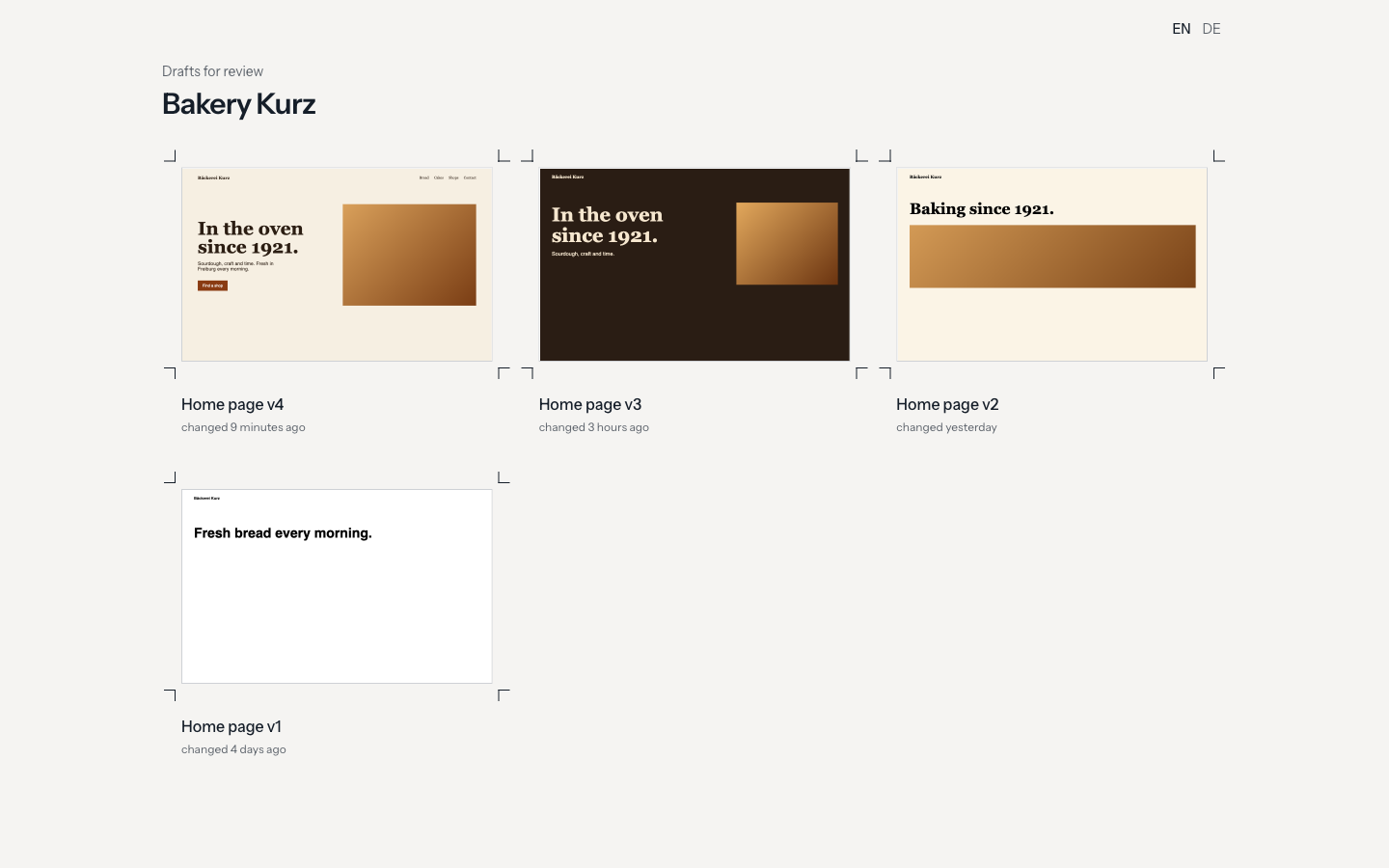
The project link (/project/<slug>) shows a card with a live preview for each site, sorted by last change. A click opens the site. Sites without an HTML file (e.g. a new version before its upload) don't show up yet.
Passwords
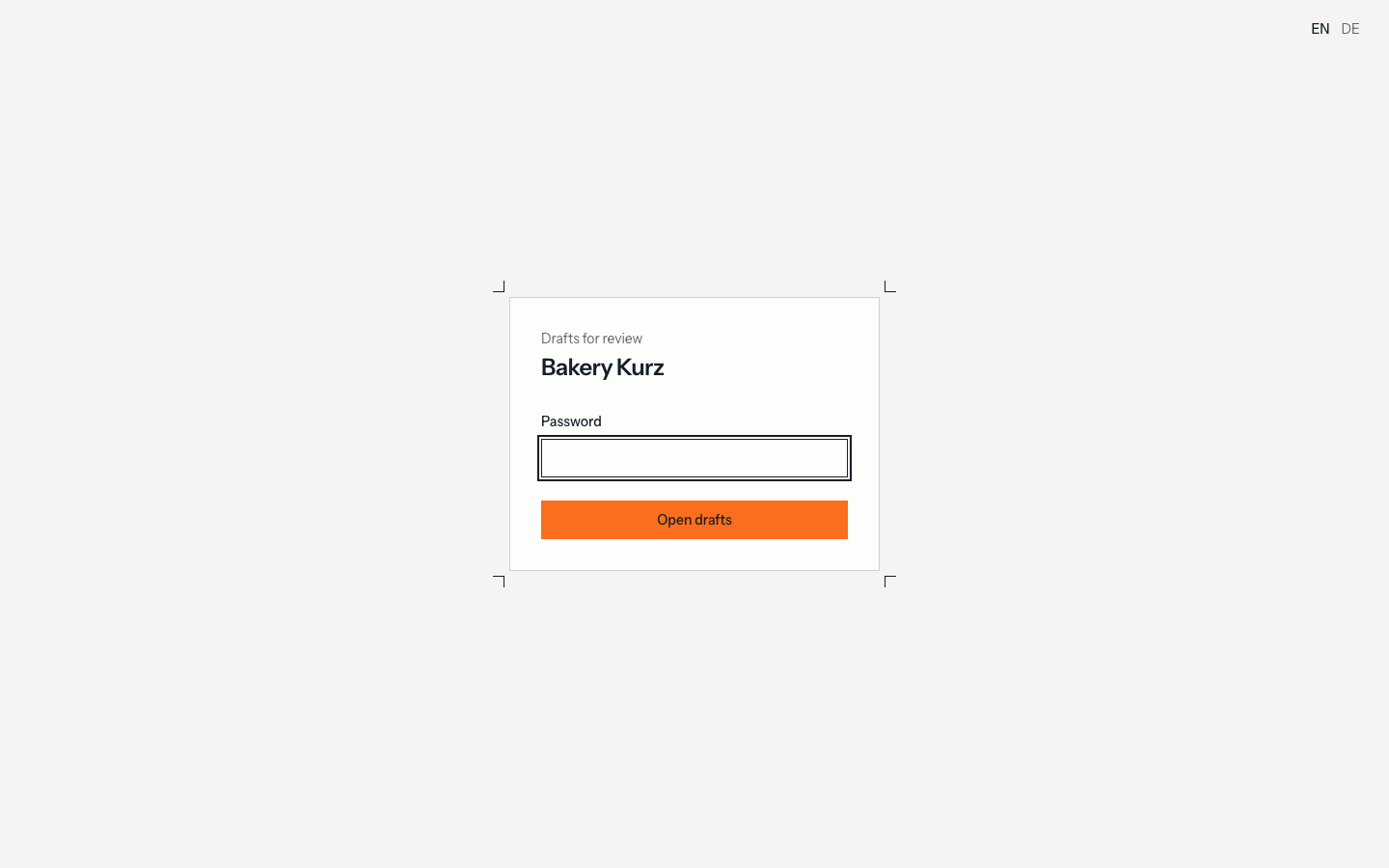
- Project password: one password opens the project page and every site in it, also sites that have their own password.
- Site password: still works. A site's own link keeps working, with or without a project.
- Project without password: anyone with the link sees the list. Sites with their own password show no preview there and still ask for their password.
Password pages allow 10 attempts per minute.
Deleting
Deleting a project removes only the project and its link. Its sites stay and show up as standalone sites again.
With an agent
Over MCP, agents use create-project, list-projects and project_id on create-site to put each version into the project.